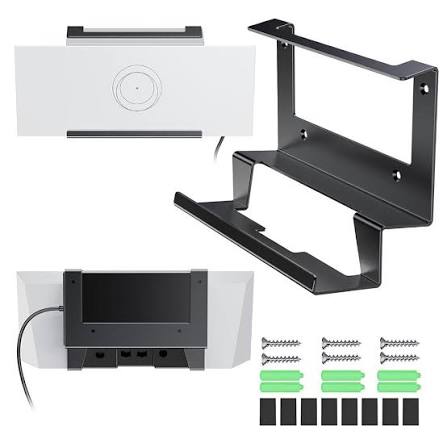
Starlink Gen 3 Router Mount
Buy Starlink Gen 3 Router Mount in Uganda for secure wall installation, better cable management and space-saving Router 3 placement. Order today.
Contact us for current pricing in Uganda
Contact us for current pricing in Uganda
Product Details
Starlink Gen 3 Router Mount: 7 Powerful Installation Benefits
Starlink Gen 3 Router Mount in Uganda
Starlink installation does not end once the satellite terminal has been mounted.
The router also needs a suitable location.
Router placement affects accessibility, cable management, physical protection and, importantly, WiFi performance.
In many homes and offices, leaving Router 3 on a desk is perfectly acceptable. In other installations, however, desk space may be limited or the router may be exposed to accidental movement.
The Starlink Gen 3 Router Mount provides a dedicated mounting solution.
Starlink officially lists the accessory as the Router 3 Mount and confirms that it is specifically compatible with Router 3.
What Is the Starlink Gen 3 Router Mount?
The Router 3 Mount is a purpose-built bracket that holds Starlink Router 3 against a wall or another appropriate mounting surface.
Its purpose is different from a Starlink dish mount.
A dish mount supports the outdoor satellite terminal.
The Router 3 Mount supports the indoor networking router.
Once the mount has been securely installed, Router 3 snaps into the bracket.
Starlink also incorporates cable retention into the design to help prevent connected cables from being unintentionally pulled from the router.
Starlink Gen 3 Router Mount Specifications
Table 1: Router 3 Mount Specifications
| Specification | Details |
|---|---|
| Official Product Name | Router 3 Mount |
| Common Name | Starlink Gen 3 Router Mount |
| Compatibility | Router 3 |
| Primary Application | Wall/surface mounting |
| Installation Environment | Home, office and suitable mobility applications |
| Mount Width | Approx. 298.6 mm / 11.76 in |
| Mount Height | Approx. 132.5 mm / 5.2 in |
| Mount Depth | Approx. 66 mm / 2.60 in |
| Package Dimensions | 250 × 165 × 85 mm |
| Package Weight | 0.34 kg / 0.75 lb |
Starlink publishes these measurements and compatibility details in its current Standard Accessories Guide.
What Comes with the Router 3 Mount?
The accessory contains the essential mounting hardware for a standard installation.
Table 2: Router 3 Mount Package Contents
| Component | Quantity | Purpose |
|---|---|---|
| Router 3 Mount | 1 | Holds Router 3 |
| Screws | 2 | Secures mount to suitable surface |
| Drywall Anchors | 2 | Supports installation in appropriate drywall |
| Router 3 | Not included | Router fits into installed mount |
| Installation Tools | Not included | Required during installation |
Starlink lists the Router Mount, two screws and two drywall anchors as the included components.
The Router 3 itself is separate.
Designed Specifically for Router 3
Compatibility is one of the most important considerations.
Starlink lists the mount specifically for:
Router 3
rather than describing it as a universal Starlink router bracket.
Customers should therefore not assume it will properly fit:
- Gen 2 Router
- Router Mini
- Gen 1 Router
- Third-party routers
Even when two routers appear similar in size, their mounting dimensions and cable positions can differ.
Using a purpose-built Router 3 Mount ensures the bracket corresponds to the intended hardware.
Router 3 Compatibility
Router 3 itself supports several Starlink hardware configurations.
Starlink currently lists Router 3 compatibility with Router Mini, Standard 4, Standard 4 X, Starlink Mini, Starlink Performance Gen 1 and Standard Circular.
There are configuration differences, however.
For example, Starlink states that Router 3 cannot serve as the direct main router for Standard Actuated in the same way as newer Standard hardware because of that system's architecture.
The Router 3 Mount itself remains a physical mounting accessory for Router 3.
Why Wall-Mount Router 3?
Wall mounting can solve several practical problems.
A wall-mounted router does not occupy:
- Desk space
- Table space
- Cabinet surfaces
- Shelving required for other equipment
This can create a cleaner installation.
Starlink specifically identifies homes and offices without available desk space as intended applications for the Router 3 Mount.
Wall mounting can also help protect the router from being knocked over or accidentally moved.
Better Cable Organisation
Cable management is another advantage.
Router 3 can have several connections around it depending on the installation.
These may include:
- Starlink connection
- Power connection
- Ethernet connection
- Network switch connection
- Third-party networking equipment
The Router 3 Mount incorporates cable retention designed to help keep connected cables from being accidentally pulled out.
This can be especially useful in offices, equipment areas and mobility applications.
Router 3 Has Two Ethernet Ports
Router 3 includes two additional RJ45 Ethernet ports.
Starlink instructs users to remove the protective RJ45 cover and connect their Ethernet cable to port 1 or port 2 when integrating third-party hardware.
These ports can be useful for connecting:
- Computers
- Network switches
- Access points
- Smart TVs
- CCTV network equipment
- Other compatible networking devices
Wall mounting should therefore leave enough room for all required cables.
Tools Required for Installation
Starlink provides specific tool recommendations for installing the Router 3 Mount.
Table 3: Recommended Installation Tools
| Tool | Purpose |
|---|---|
| Drill | Creates mounting holes |
| Marker | Marks screw locations |
| #2 Phillips Screwdriver | Tightens mounting screws |
| 4 mm / 5⁄32 in Drill Bit | Installation without supplied anchors |
| 7 mm / 9⁄32 in Drill Bit | Installation using wall anchors |
| Level | Helpful for straight installation |
The drill, marker, screwdriver and drill-bit sizes are specified in Starlink's accessory documentation.
The appropriate fixing method should match the actual wall material.
Choosing the Best Wall Location
Mounting the router securely is only part of the job.
You also need to select a location that supports good WiFi performance.
Avoid installing Router 3 simply where the wall is easiest to drill.
Consider:
- Central location
- Height
- Nearby walls
- Furniture
- Mirrors
- Metal objects
- Power availability
- Starlink cable reach
- Ethernet cable requirements
The best physical mounting location should balance cable accessibility and wireless coverage.
Avoid Hiding Router 3
A clean installation does not mean hiding the router inside a closed metal cabinet.
WiFi performance can be reduced by physical barriers.
Router 3 should ideally remain in an open location rather than being buried behind furniture or equipment.
A wall mount can help achieve this by lifting the router away from cluttered desks and floors.
This can be especially useful in offices where tables are already occupied by computers, phones and other equipment.
Router 3 Mount for Homes
Home installations are one of the main applications.
A wall-mounted Router 3 can work well in:
- Living rooms
- Home offices
- Hallways
- Central areas
- Utility areas with suitable WiFi positioning
The mount can keep Router 3 away from small children, pets and frequently used surfaces.
However, mounting it extremely high or in an enclosed corner purely to hide it may negatively affect practical access or WiFi coverage.
The location should remain functional.
Router 3 Mount for Offices
Office networking installations can particularly benefit from organised hardware placement.
A typical office may have:
Starlink → Router 3 → Network Switch → Computers/APs/CCTV
Leaving all these devices loose on a desk quickly creates cable clutter.
Wall mounting Router 3 can help separate the Starlink router from other equipment while retaining access to the Ethernet ports and cables.
For larger networks, the router may be installed near the main networking area while switches and structured cabling distribute connectivity elsewhere.
Router 3 Mount for Shops
Shops frequently have limited counter space.
A router sitting beside payment equipment, computers or stock can be inconvenient.
Mounting Router 3 on a suitable wall can free working space while keeping the router accessible.
The location should still be selected according to WiFi requirements.
For example, placing Router 3 behind several concrete walls simply because there is unused wall space may produce poor coverage in the customer area.
Router 3 Mount for Lodges
Lodges may use Starlink as the primary internet connection for staff and guests.
The router can be mounted in a secure location rather than left where guests or staff can accidentally disconnect cables.
For larger properties, Router 3 can also participate in compatible Starlink mesh configurations.
The wall mount itself does not increase WiFi range, but it can help position the router in a more appropriate location.
Router 3 Mount for Schools
Schools can benefit from keeping networking equipment physically organised.
A Router 3 left on an accessible desk can be:
- Moved
- Unplugged
- Knocked over
- Disconnected accidentally
Wall mounting can provide a more controlled installation.
For larger school networks, Router 3 may feed switches and access points rather than being expected to provide WiFi throughout an entire campus by itself.
Router 3 Mount for Mobility Applications
Starlink specifically identifies mobility applications where space efficiency is paramount as another intended use for the Router 3 Mount.
In these installations, available interior space can be limited.
Mounting Router 3 against a suitable surface may be preferable to leaving it loose.
Cable retention also becomes useful where movement could otherwise disturb connections.
The complete Starlink setup and service plan must still be appropriate for the intended mobility application.
Router 3 Mount vs Leaving Router on a Desk
Table 4: Wall Mount vs Desk Placement
| Feature | Router 3 Mount | Desk Placement |
|---|---|---|
| Uses Desk Space | No | Yes |
| Dedicated Router Position | Yes | Depends |
| Cable Retention | Yes | No dedicated mount retention |
| Accidental Movement | Reduced | More likely |
| Installation Required | Yes | No |
| Easy Relocation | Requires removal | Very easy |
| Clean Appearance | Excellent | Depends on cable management |
| Best For | Permanent organised setup | Simple temporary setup |
Desk placement is not wrong.
For some customers, it is the simplest option.
The Router 3 Mount becomes useful when a cleaner and more permanent installation is preferred.
Router 3 Mount vs Generic Router Bracket
A generic bracket may physically hold various routers.
However, the official Router 3 Mount is designed specifically around Router 3.
Table 5: Official Router 3 Mount vs Generic Bracket
| Feature | Router 3 Mount | Generic Router Bracket |
|---|---|---|
| Designed for Router 3 | Yes | Depends |
| Snap-In Fit | Yes | Varies |
| Cable Retention | Yes | Varies |
| Published Dimensions | Yes | Varies |
| Included Fixings | Yes | Depends |
| Starlink Documentation | Yes | No |
| Installation Guide | Yes | Depends |
| Fit Verification | Router 3 specific | Must be checked |
The purpose-built design reduces guesswork around physical fit.
Router 3 Mount vs Power Supply Mount
The Router 3 Mount and Starlink Power Supply Mount are different accessories.
One holds the router.
The other is intended to organise compatible power equipment.
Table 6: Router Mount vs Power Supply Mount
| Feature | Router 3 Mount | Power Supply Mount |
|---|---|---|
| Holds Router 3 | Yes | No |
| Holds Compatible PSU | No | Yes |
| Wall Installation | Yes | Yes |
| Cable Organisation | Yes | Yes |
| Networking Function | Router remains active device | PSU provides power |
| Main Purpose | Secure Router 3 | Secure power equipment |
A professional Starlink installation may use both mounting solutions where appropriate.
This can create a more organised equipment area.
Installing the Router 3 Mount
The basic installation starts by selecting a suitable location and using the mount to determine the fixing positions.
Mark the holes before drilling.
The required drill-bit size depends on whether the supplied wall anchors are being used. Starlink specifies 4 mm (5/32 in) for installation without anchors or 7 mm (9/32 in) when using the supplied wall anchors.
After the bracket is securely attached, Router 3 can be snapped into position.
Before completing the installation, ensure the router and cables are secure.
Consider the Wall Material
The supplied drywall anchors are not automatically suitable for every surface.
Ugandan buildings may use:
- Concrete
- Brick
- Masonry
- Drywall
- Timber
- Other materials
The fixing method should be appropriate for the wall.
A masonry installation, for example, may require suitable masonry plugs and drilling equipment rather than treating the surface like drywall.
The goal is to securely support the router without damaging the wall or allowing the bracket to loosen.
Keep Access to Router Connections
Do not install Router 3 where the cables become impossible to reach.
Router 3 has Ethernet connectivity and may need occasional maintenance or cable changes.
Starlink confirms that its extra RJ45 ports are located behind a cover and can be used for third-party Ethernet equipment.
Leave sufficient working space around the mounted router.
A neat installation should remain serviceable.
Router 3 Mount and WiFi 6
The mount does not improve the router's technical specifications.
Router 3 itself provides the networking performance.
Starlink lists Router 3 as supporting:
- IEEE 802.11a/b/g/n/ac/ax
- WiFi 6
- Tri-band 2.4 GHz and 5 GHz
- 4×4 MU-MIMO
- OFDMA
- WPA2 security
The mount simply helps position and secure this hardware.
However, a well-chosen mounting position can help users make better use of the router's wireless capabilities by avoiding poor placement.
Does Wall Mounting Increase WiFi Range?
Not automatically.
The mount itself contains no antenna, amplifier or WiFi electronics.
Its contribution is placement.
Moving Router 3 from a low, cluttered location to a more open and suitable wall position can potentially improve the practical wireless environment, but results depend on the building.
The router's WiFi performance still depends on distance, walls, interference and connected devices.
Router 3 Mount and Mesh WiFi
Router 3 can also operate within compatible Starlink mesh configurations.
Starlink provides Router 3 mesh setup instructions and supports pairing Router 3 with compatible Starlink routers.
Wall mounting can therefore be useful for mesh nodes as well.
For example:
Primary Router 3 → Mesh Router 3
Each router can be positioned in a suitable location.
The mounts can help keep mesh nodes in consistent positions rather than being moved around on furniture.
Cable Retention Is an Important Feature
One easily overlooked feature is the mount's cable retention.
Starlink specifically says the design helps ensure cables are not accidentally pulled out after Router 3 is snapped into place.
This is useful where cables might otherwise be disturbed during:
- Cleaning
- Furniture movement
- Office work
- Equipment maintenance
- Vehicle movement in suitable mobility installations
It does not mean cables can be pulled aggressively.
Proper cable routing remains necessary.
Router 3 Mount Dimensions
The mount is designed closely around Router 3.
Starlink's technical drawing gives approximate dimensions of:
298.6 mm (11.76 in) wide
132.5 mm (5.2 in) high
66 mm (2.60 in) deep.
The package itself measures approximately:
250 × 165 × 85 mm (9.8 × 6.5 × 3.3 in).
These measurements can help when planning wall space before installation.
Where Should You Avoid Mounting Router 3?
Avoid locations where the router will be:
- Enclosed by metal
- Exposed to frequent impact
- Difficult to access
- Surrounded by major WiFi obstructions
- Directly beside equipment creating substantial interference
- Hidden behind heavy furniture
- Mounted where cables must be sharply bent
Router 3 is IP56-rated as water resistant, but Starlink's current Router 3 specifications describe its configuration as indoor use.
Therefore, do not treat the wall mount as permission to install Router 3 outdoors in exposed conditions.
Professional Router Mount Installation
The physical bracket is straightforward, but professional installation can be useful where Router 3 forms part of a larger network.
An installer can help determine:
- Router location
- Wall type
- Correct fixings
- Cable routing
- Ethernet connections
- Switch placement
- Mesh-node positions
- WiFi coverage
This is particularly useful for offices, lodges, schools and large homes.
The goal is not merely to attach Router 3 to a wall but to position it where it can function effectively.
Why Choose the Starlink Gen 3 Router Mount?
The Starlink Gen 3 Router Mount is useful for customers who want:
- Secure Router 3 placement
- Wall-mounted installation
- More available desk space
- Better cable organisation
- Integrated cable retention
- A purpose-built Router 3 bracket
- Cleaner home installations
- Organised office networking
- Suitable mobility installations
- Simple router removal and placement
- Included mounting screws and drywall anchors
Starlink designed the mount specifically for Router 3 and provides dedicated installation documentation for the accessory.
Why Buy from Starlink Uganda Installers?
Starlink Uganda Installers can assist customers with Router 3 Mount selection and installation rather than simply supplying the bracket.
Correct router placement can be important for WiFi performance, especially in properties with concrete walls, multiple rooms or multiple floors.
Installation can also include Starlink setup, Ethernet cabling, mesh-router configuration, network switches and WiFi coverage planning.
This helps create an organised networking system rather than simply attaching equipment wherever wall space happens to be available.
Frequently Asked Questions About Starlink Gen 3 Router Mount
1. What is the Starlink Gen 3 Router Mount?
The Starlink Gen 3 Router Mount, officially called the Router 3 Mount, is an accessory designed to attach Router 3 directly to a wall or another suitable surface. It is intended for organised home, office and suitable mobility installations.
2. Is the Router 3 Mount compatible with the Gen 3 Router?
Yes. Starlink specifically lists Router 3 as the compatible hardware for the Router 3 Mount.
3. What comes with the Router 3 Mount?
The package contains the Router Mount, two screws and two drywall anchors. The router and installation tools are separate.
4. What tools are needed to install the Router 3 Mount?
Starlink recommends a drill, marker, #2 Phillips screwdriver and either a 4 mm (5/32 in) drill bit without anchors or a 7 mm (9/32 in) drill bit when using the wall anchors.
5. How large is the Starlink Router 3 Mount?
Starlink's technical drawing shows approximate mount dimensions of 298.6 mm wide, 132.5 mm high and 66 mm deep. The packaged accessory measures approximately 250 × 165 × 85 mm.
6. How much does the Router 3 Mount weigh?
Starlink lists a package weight of approximately 0.34 kg (0.75 lb).
7. Does the Router 3 Mount hold the cables?
The mount includes cable retention designed to help prevent Router 3 cables from being accidentally pulled out. Proper cable routing is still required.
8. Can I use the Router 3 Mount outdoors?
Router 3 itself is IP56-rated for water resistance, but Starlink specifies the Router 3 configuration for indoor use. The mount should therefore not be treated as an outdoor enclosure or weatherproof housing.
9. Does wall mounting Router 3 improve WiFi?
The mount itself does not increase WiFi power or satellite speed. However, it can help position Router 3 in a more open and organised location. Actual WiFi performance depends on placement, walls, interference, distance and the building layout.
10. Where can I buy a Starlink Gen 3 Router Mount in Uganda?
Customers can contact Starlink Uganda Installers for a Router 3 Mount and assistance with wall mounting, Router 3 setup, Ethernet networking, mesh configuration and WiFi coverage planning.
Conclusion
The Starlink Gen 3 Router Mount is a purpose-built solution for securely positioning Router 3 on a wall or another suitable surface. Starlink designed it specifically for Router 3 and highlights home, office and space-efficient mobility applications. The mount includes two screws and two drywall anchors, weighs approximately 0.34 kg and incorporates cable retention to help prevent connected cables from being accidentally pulled out.
A Router 3 Mount can provide a cleaner installation while freeing desk or shelf space, but mounting location remains important. Router 3 supports WiFi 6, tri-band wireless networking, 4×4 MU-MIMO, OFDMA and two additional RJ45 Ethernet ports, so the chosen location should provide adequate WiFi positioning while keeping power, Starlink and Ethernet connections accessible.
For a Starlink Gen 3 Router Mount in Uganda, Starlink Uganda Installers can assist with Router 3 mounting, cable management, Ethernet networking, mesh setup and complete Starlink installation for homes, offices, shops, lodges and other properties.