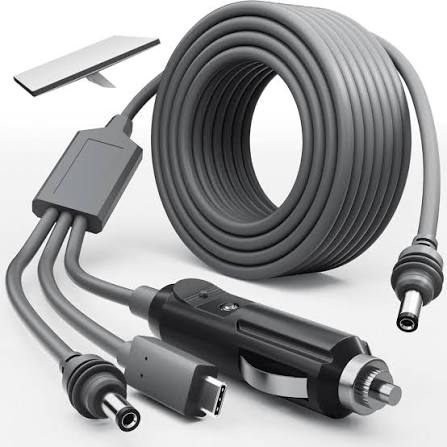
Wi-Fi 6 Router for Starlink Mini Kit
Shop Wi-Fi 6 Router for Starlink Mini Kit in Uganda for stronger coverage, mesh WiFi and Ethernet connectivity. Expand your Starlink network today.
Contact us for current pricing in Uganda
Contact us for current pricing in Uganda
Product Details
Wi-Fi 6 Router for Starlink Mini Kit: 7 Powerful Benefits
Wi-Fi 6 Router for Starlink Mini Kit in Uganda
The Wi-Fi 6 Router for Starlink Mini Kit provides a simple way to improve wireless coverage when the WiFi built into the Starlink Mini terminal cannot adequately cover the entire property.
Starlink Mini already includes integrated WiFi, making it possible to connect phones, laptops and other wireless devices without purchasing a separate primary router.
However, the ideal location for the Starlink terminal is not always the ideal location for WiFi.
The Mini terminal needs suitable sky visibility to communicate with Starlink satellites.
Your WiFi router, on the other hand, performs best when positioned centrally and away from major physical obstructions.
This difference can result in strong satellite connectivity but weak indoor WiFi in certain rooms.
Adding a Starlink Router Mini allows customers to extend the network closer to those areas.
What Is the Wi-Fi 6 Router for Starlink Mini Kit?
The Wi-Fi 6 Router for Starlink Mini Kit is Starlink's compact Router Mini.
It supports IEEE 802.11a/b/g/n/ac/ax wireless standards, including the current Wi-Fi 6 / 802.11ax generation.
It operates simultaneously across the commonly used 2.4 GHz and 5 GHz frequency bands.
The router can be added to an existing Starlink network either wirelessly or through Ethernet.
Table 1: Wi-Fi 6 Router for Starlink Mini Specifications
| Specification | Details |
|---|---|
| Product | Starlink Router Mini |
| WiFi Generation | Wi-Fi 6 |
| Standards | IEEE 802.11a/b/g/n/ac/ax |
| Frequency Bands | 2.4 GHz and 5 GHz |
| Wireless Type | Dual-band |
| Wireless Technology | MU-MIMO |
| Security | WPA2 |
| Approx. Coverage | 204 m² / 2,200 sq ft |
| Operating Temperature | -30°C to 50°C |
| Installation | Indoor |
| Mesh Networking | Wired or wireless |
| Ethernet | LAN and WAN |
| Dimensions | Approx. 138 × 83.6 × 27 mm |
Starlink's current support documentation specifies 2×2 at 2.4 GHz and 2×3 at 5 GHz MU-MIMO.
Wi-Fi 6 Technology
The Router Mini uses Wi-Fi 6, also known as 802.11ax.
This is important because many current phones, laptops, tablets, televisions and other smart devices support Wi-Fi 6.
The router remains backward-compatible with several earlier WiFi standards, so customers do not need to replace older devices simply because they install Router Mini.
The supported standards currently include:
802.11a/b/g/n/ac/ax.
This makes Router Mini suitable for networks containing a mixture of older and newer WiFi devices.
Dual-Band 2.4 GHz and 5 GHz WiFi
The Router Mini is a dual-band router.
It provides both 2.4 GHz and 5 GHz wireless connectivity.
The two frequency bands have different characteristics.
Table 2: 2.4 GHz vs 5 GHz WiFi
| Feature | 2.4 GHz | 5 GHz |
|---|---|---|
| Relative Range | Longer | Shorter |
| Wall Penetration | Generally better | Generally lower |
| Potential Performance | Lower | Higher |
| Interference | Often higher | Often lower |
| Best For | Distant/basic devices | Nearby high-bandwidth devices |
| Router Mini Support | Yes | Yes |
A phone in the same room as Router Mini may benefit from the 5 GHz connection, while devices located farther away may perform better on 2.4 GHz depending on the environment.
Up to Approximately 2,200 Sq Ft Coverage
Starlink currently advertises approximately 2,200 square feet or 204 square metres of coverage per Router Mini.
This figure should not be treated as a guaranteed radius.
Starlink specifically notes that coverage is affected by:
- Building construction
- Layout
- Router placement
- Stone walls
- Concrete walls
- Long building layouts
- Wireless interference
A Router Mini installed in a large open room may cover considerably differently from one installed inside a reinforced concrete building.
This makes placement important.
Extending Starlink Mini WiFi
One of the primary reasons to purchase a Wi-Fi 6 Router for Starlink Mini is to extend the existing network.
Suppose Starlink Mini is installed near one side of a house because that location provides the best sky visibility.
The rooms closest to Mini may receive excellent WiFi.
Rooms on the opposite side of the property may receive a much weaker signal.
Router Mini can be positioned closer to the weak area and connected to the existing Starlink network.
The result is a wider WiFi footprint without relocating the Starlink terminal away from its preferred satellite location.
Starlink Mesh Networking
Router Mini supports Starlink Mesh.
A mesh network combines multiple compatible routers to extend WiFi throughout a larger area.
Starlink describes mesh routers as additional devices that work with the primary Starlink router to fill nearby weak WiFi areas.
Router Mini can mesh with:
Starlink Mini → Router Mini
Router 3 → Router Mini
Gen 2 Router → Router Mini
Router Mini → Router Mini
Starlink states that Router Mini is compatible with its supported router generations except Gen 1.
Wireless Mesh Connection
The easiest method is wireless mesh.
Router Mini is positioned within suitable WiFi range of the existing Starlink network and connected to power.
The Starlink app then detects the new mesh router.
Starlink's setup instructions state that a New Mesh Node(s) notification should normally appear after approximately 1–2 minutes.
The user selects Pair or Pair All, after which the connection may take approximately 1–5 minutes to establish.
No Ethernet cable between the Starlink Mini and Router Mini is required in this arrangement.
Wired Mesh Connection
Starlink recommends a wired connection for the best performance where practical.
The setup becomes:
Starlink Mini → Mini Starlink Ethernet Cable → Router Mini WAN → WiFi Devices
Ethernet carries the network connection between the Mini and Router Mini instead of depending on wireless communication between the two devices.
Table 3: Wired vs Wireless Router Mini
| Feature | Wired Mesh | Wireless Mesh |
|---|---|---|
| Ethernet Required | Yes | No |
| Installation | More involved | Easier |
| Wall Interference | Minimal between routers | Can reduce performance |
| Backhaul | Ethernet | WiFi |
| Starlink Recommendation | Best performance | Supported |
| Best Application | Permanent installation | Simple expansion |
| Starlink Mini Support | Yes | Yes |
For wired Starlink Mini installations, Starlink recommends its 15 m Mini Starlink Ethernet Cable to maintain the appropriate waterproof connection at the terminal.
Ethernet Connectivity
Router Mini is not limited to WiFi.
Starlink's current product information lists:
1 × latching Ethernet LAN port
1 × latching Ethernet WAN port
The WAN port receives the wired network connection when Router Mini is connected to the primary Starlink system.
The LAN connection can support compatible wired equipment.
For example:
Starlink Mini → Router Mini → Desktop Computer
or:
Starlink Mini → Router Mini → Ethernet Switch → Multiple Devices
Starlink recommends Cat5e or better Ethernet cabling for appropriate wired-device connections.
What Comes with Router Mini?
The Starlink Mini accessories documentation lists the Router Mini package with the router and the equipment required for a normal installation.
Table 4: Router Mini Kit Contents
| Component | Purpose |
|---|---|
| Router Mini | Provides Wi-Fi 6 connectivity |
| Router Stand | Supports table or wall installation |
| Power Supply | Powers Router Mini |
| 2 Screws | Used for mounting |
| 2 Wall Anchors | Used for suitable wall installation |
Starlink lists the packaged Router Mini at approximately 0.44 kg, with package dimensions of approximately 206.5 × 166.5 × 56.5 mm.
The router itself measures approximately 138 × 83.6 × 27 mm without the stand.
Router Mini Compatibility
Compatibility is important because not every Starlink router generation can form the same mesh network.
Table 5: Wi-Fi 6 Router Compatibility
| Equipment | Router Mini Compatibility |
|---|---|
| Starlink Mini | Yes |
| Router Mini | Yes |
| Router 3 | Yes |
| Gen 2 Router | Yes |
| Gen 1 Router Mesh | No |
| Third-Party Mesh Systems | No |
| Ethernet Switch | Wired connection possible |
| Wired Computers/TVs | Yes |
Starlink specifically states that Router Mini does not mesh with third-party mesh systems.
Customers who already have a third-party networking system should therefore plan the network architecture accordingly rather than assuming Router Mini will join another manufacturer's mesh ecosystem.
Wi-Fi 6 Router for Homes
Router Mini can be particularly useful in homes where one Starlink WiFi source cannot reach every room.
Common weak-signal areas include bedrooms, upstairs rooms, home offices, kitchens, garages and entertainment rooms.
The Router Mini can be positioned between the primary Starlink router and the area experiencing weak connectivity.
Starlink recommends placing wireless mesh routers approximately one to two rooms apart.
This helps maintain a strong connection between mesh nodes.
Wi-Fi 6 Router for Apartments
Router Mini's compact size makes it particularly suitable for apartments.
An apartment may not require the larger coverage footprint and higher network capacity of Router 3.
Instead, the main problem may simply be one bedroom or office receiving poor WiFi.
A strategically positioned Router Mini can address that problem without creating an unnecessarily complicated network.
Its small dimensions also make it relatively easy to position on a shelf, desk or suitable wall.
Wi-Fi 6 Router for Offices
Small offices using Starlink Mini can also benefit from Router Mini.
A typical configuration might be:
Starlink Mini → Router Mini → Office Devices
For stronger backhaul:
Starlink Mini → Ethernet → Router Mini → Office WiFi
Staff can then connect phones, laptops and other wireless equipment.
Wired devices can also use Ethernet.
For larger businesses with many users, departments, CCTV systems and multiple access points, a professionally designed network may be more appropriate than relying exclusively on consumer mesh routers.
Wi-Fi Dead Zones
A WiFi dead zone is an area where wireless connectivity becomes weak or unusable.
Common causes include:
- Distance from the router
- Reinforced concrete
- Thick stone walls
- Metal objects
- Multiple walls
- Poor router positioning
- Wireless interference
Router Mini is specifically marketed by Starlink as a compact mesh router for filling WiFi dead spots.
However, simply placing the router inside the dead zone is not always correct.
A wireless mesh node needs a sufficiently strong connection back to the main router.
It should generally be positioned between the primary router and the problem area.
Router Mini Placement
Placement can significantly affect WiFi performance.
Starlink recommends placing Router Mini:
- Off the floor
- Away from major obstructions
- Away from metal appliances
- Within approximately two rooms of another mesh router
- In an open location where possible
Hiding the router inside a metal cabinet can significantly reduce wireless performance.
An open shelf or suitable elevated position is generally more appropriate.
Concrete and Stone Walls
Ugandan homes and commercial buildings commonly use masonry and concrete construction.
These materials can weaken WiFi signals.
Starlink specifically notes that properties with stone or concrete walls may require additional routers for complete coverage.
Where walls significantly weaken wireless mesh, Ethernet can provide a better solution.
For example:
Starlink Mini → Ethernet Cable → Router Mini in Second Area
The cable carries the connection through the difficult section, and Router Mini then provides local WiFi coverage from the new location.
Router Mini vs Router 3
Router Mini and Router 3 both support Wi-Fi 6, but they target different networking requirements.
Router Mini is compact and dual-band.
Router 3 is designed for larger or busier environments and provides a tri-band WiFi architecture.
Starlink currently positions Router Mini for smaller or medium homes and straightforward dead-zone coverage, while Router 3 is intended for larger or heavier-use environments.
Table 6: Router Mini vs Router 3
| Feature | Router Mini | Router 3 |
|---|---|---|
| WiFi Generation | Wi-Fi 6 | Wi-Fi 6 |
| Wireless Design | Dual-band | Tri-band |
| Listed Coverage | ~204 m² | ~297 m² |
| Mesh Support | Yes | Yes |
| Starlink Mini Compatible | Yes | Yes |
| Primary Application | Small/medium spaces | Larger/busier spaces |
| Physical Size | Compact | Larger |
| LAN Ethernet Ports | 1 | 2 |
The best option therefore depends on the property rather than simply choosing the larger router.
How Many Router Mini Units Do You Need?
There is no fixed answer.
A small apartment may need only one Router Mini.
A larger house may benefit from two or three strategically positioned mesh nodes.
However, more routers are not automatically better.
Starlink currently recommends not using more than three mesh routers, noting that larger homes may benefit more from wired connections.
For very large properties, Ethernet or fibre cabling combined with dedicated wireless access points may provide a better long-term solution.
Installing the Wi-Fi 6 Router
Router Mini installation starts by ensuring the existing Starlink system is already online.
The router is then positioned where additional WiFi coverage is required and connected to power.
Customers choose either wired or wireless mesh.
Wireless setup:
Starlink Mini → Wireless Mesh → Router Mini
Wired setup:
Starlink Mini → Ethernet → Router Mini
The Starlink app handles wireless mesh pairing.
Starlink also supports either table or wall installation using the Router Mini stand.
Wall Mounting Router Mini
Router Mini can be installed on a suitable wall.
Starlink's installation guide instructs users to use the mount to mark the hole positions and specifies a 5.5 mm (7/32-inch) drill bit for the mounting holes.
The wall anchors and screws are then installed before Router Mini is snapped into its wall-mounted stand.
However, customers should determine the best WiFi position before drilling.
Testing the router temporarily can help confirm coverage first.
Indoor Installation
Router Mini is designed for indoor use.
Starlink lists its operating temperature at approximately -30°C to 50°C, but this should not be interpreted as permission to install the router outdoors.
Starlink specifically warns against placing Router Mini outside because doing so can cause connectivity problems.
The Starlink Mini terminal can remain outside in an appropriate location while Router Mini stays protected indoors.
Router Mini Status Light
The Router Mini's front LED can help with troubleshooting.
Starlink currently identifies the main indications as:
Flashing white: trying to connect.
Solid white: connected to the internet.
Red: not connected to the internet.
Violet: router is in bypass mode.
The light normally switches off after approximately one hour when the router is connected.
These indicators can help determine whether a problem involves power, internet connectivity or router configuration.
Router Mini for Streaming
Router Mini can improve streaming where poor local WiFi coverage is the problem.
For example, a smart television in a distant room may receive a weak signal directly from Starlink Mini.
Adding Router Mini closer to the television can improve local connectivity.
Alternatively, the television can be connected directly through Ethernet where practical.
It is important to understand that Router Mini does not create additional Starlink satellite bandwidth.
It distributes the available internet connection more effectively around the property.
Router Mini for Gaming
Gaming systems can also benefit from improved local networking.
Where possible, a wired Ethernet connection between Router Mini and the gaming device can reduce dependence on the final WiFi hop.
However, internet latency still depends on the Starlink connection and wider network conditions.
Router Mini mainly addresses the local network connection between the user's device and Starlink system.
Router Mini for CCTV
Router Mini can be incorporated into a small CCTV network where suitable.
A network switch can be connected downstream where more wired connections are required.
However, larger surveillance systems may require:
- PoE switches
- Managed networking
- VLANs
- Dedicated access points
- Network video recorders
- Professional Ethernet or fibre cabling
Router Mini should therefore be treated as a Starlink WiFi and mesh device rather than a replacement for all business networking equipment.
Wi-Fi 6 Router and Mini X Kit
Starlink also uses Router Mini as part of its Mini X Kit in supported markets.
The Mini X Kit combines the Starlink Mini terminal with Router Mini to provide a compact satellite-internet and expanded-WiFi solution. Starlink currently describes Router Mini as a lightweight WiFi router optimised for Mini and suitable for smaller homes, cabins and mobile setups.
This demonstrates how closely Router Mini is designed to complement Starlink Mini.
Customers do not necessarily need a Mini X bundle, however, to use Router Mini with an existing compatible Mini setup.
Choosing a Wi-Fi 6 Router for Starlink Mini Kit
The Wi-Fi 6 Router for Starlink Mini Kit is particularly suitable when customers need:
- Better Starlink Mini WiFi coverage
- Wi-Fi 6 networking
- 2.4 GHz and 5 GHz connectivity
- Starlink mesh networking
- Wired or wireless mesh
- Ethernet connectivity
- Dead-zone reduction
- Small-office WiFi
- Apartment coverage
- Additional rooms connected
- Compact router hardware
The correct network design still depends on the building.
A small home may need one Router Mini.
A larger reinforced-concrete property may perform better with wired Router Mini nodes or a professional access-point network.
Why Buy from Starlink Uganda Installers?
Starlink Uganda Installers can help customers determine whether Router Mini is the appropriate solution for their WiFi problem rather than simply adding routers without planning their placement.
The installation can include WiFi assessment, Router Mini positioning, wireless mesh pairing, Ethernet cabling and wired mesh configuration.
For larger homes, offices and commercial properties, the Starlink connection can also be integrated with Ethernet switches, access points and other networking equipment.
This allows customers to build a WiFi system around the actual size, construction and usage requirements of the property.
FAQs
1. What is the Wi-Fi 6 Router for Starlink Mini Kit?
It is the Starlink Router Mini, a compact dual-band Wi-Fi 6 router designed to extend Starlink WiFi coverage and operate as a compatible Starlink mesh node.
2. Does the Wi-Fi 6 Router work with Starlink Mini?
Yes. Router Mini is compatible with Starlink Mini and can connect using either wired or wireless mesh networking.
3. How much area does Starlink Router Mini cover?
Starlink currently lists approximately 204 m² or 2,200 sq ft per Router Mini. Actual coverage varies according to building construction, layout, interference and router placement.
4. Does Router Mini support 2.4 GHz and 5 GHz?
Yes. Router Mini is a dual-band Wi-Fi 6 router supporting both 2.4 GHz and 5 GHz frequencies.
5. Does Router Mini have Ethernet?
Yes. Starlink currently lists one latching Ethernet LAN port and one latching Ethernet WAN port.
6. Can I connect Router Mini wirelessly to Starlink Mini?
Yes. Power Router Mini and use the Starlink app to pair it as a wireless mesh node. Starlink says the pairing notification normally appears after approximately 1–2 minutes.
7. Can I connect Router Mini to Starlink Mini with Ethernet?
Yes. Starlink recommends its 15 m Mini Starlink Ethernet Cable for a wired connection between Starlink Mini and Router Mini, particularly where maintaining the terminal's waterproof connection is important.
8. Is Router Mini suitable for outdoor installation?
No. Router Mini is configured for indoor use, and Starlink specifically advises customers not to place it outside.
9. Is Router Mini better than Router 3?
They are designed for different needs. Router Mini is compact and intended primarily for smaller or medium spaces and WiFi dead-zone expansion, while Router 3 is designed for larger or busier environments.
10. Where can I buy a Wi-Fi 6 Router for Starlink Mini Kit in Uganda?
Customers can contact Starlink Uganda Installers to enquire about Router Mini availability and get assistance with Starlink Mini WiFi expansion, Ethernet cabling, wired mesh, wireless mesh and complete network installation.
Conclusion
The Wi-Fi 6 Router for Starlink Mini Kit provides a compact solution for extending Starlink connectivity throughout homes, apartments and small offices. Officially called Router Mini, it combines dual-band Wi-Fi 6, Starlink mesh support and Ethernet connectivity in a small indoor router designed to complement Starlink Mini and other supported Starlink routers.
Router Mini can operate through either wireless or wired mesh, allowing customers to choose between easy installation and stronger Ethernet backhaul. Starlink recommends wired connections for the best performance where practical, while wireless mesh provides a convenient solution for extending coverage without installing Ethernet cables.
For a Wi-Fi 6 Router for Starlink Mini Kit in Uganda, contact Starlink Uganda Installers for assistance with Router Mini setup, Starlink mesh configuration, Ethernet cabling and WiFi optimisation. Visit Starlink Uganda Installers for more information.